

Step 1: Get your Raindrop write key
In Raindrop, navigate to your project settings:- Log in to your Raindrop account
- Go to Settings and find your project’s Write Key
- Copy the write key
Step 2: Enable Broadcast in OpenRouter
Go to Settings > Observability and toggle Enable Broadcast.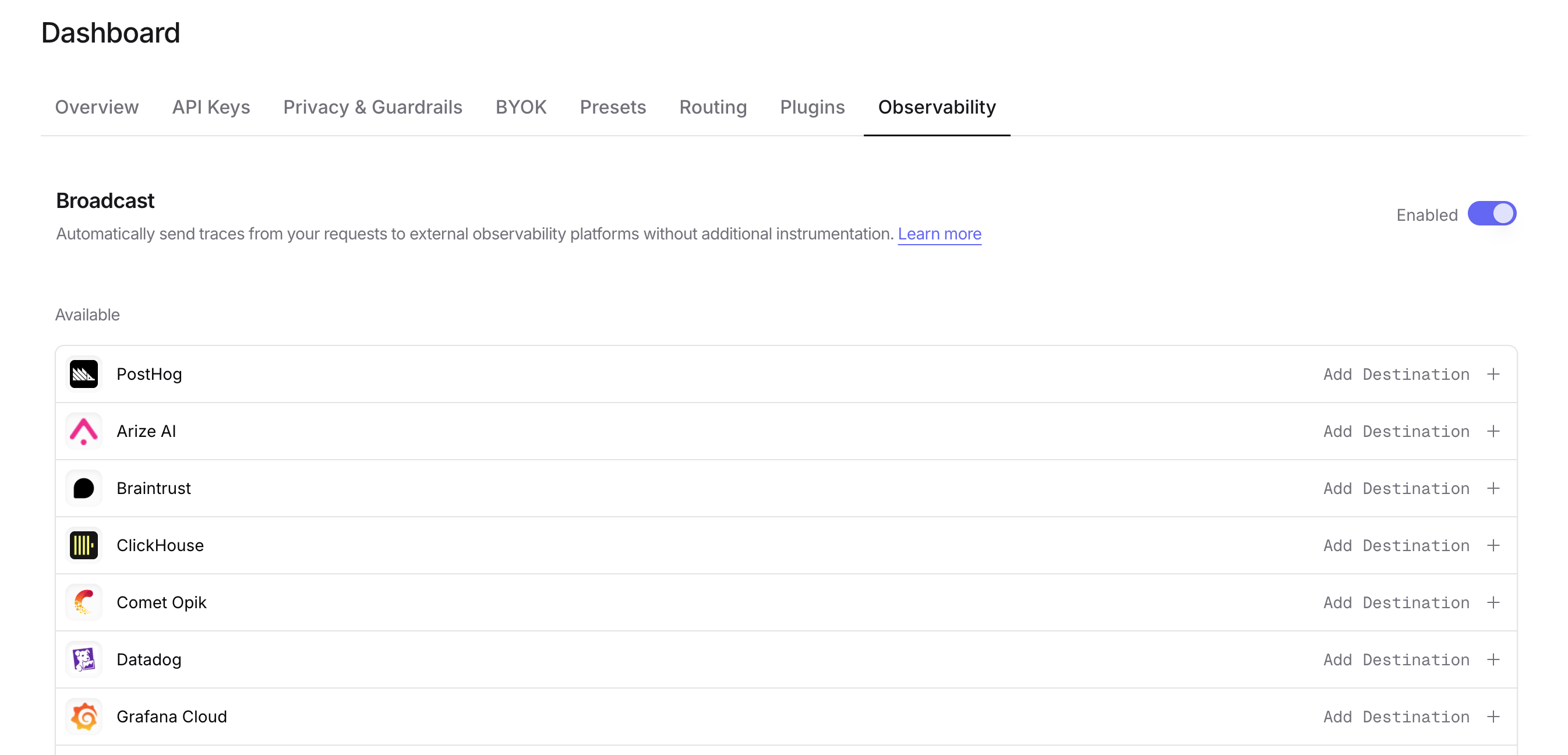
Step 3: Configure Raindrop
Click the edit icon next to Raindrop and enter:- Write Key: Your Raindrop project write key
- Base URL (optional): Default is
https://api.raindrop.ai. Change only if using a custom endpoint
Step 4: Test and save
Click Test Connection to verify the setup. The configuration only saves if the test passes.Step 5: Send a test trace
Make an API request through OpenRouter and view the event in your Raindrop dashboard under Events.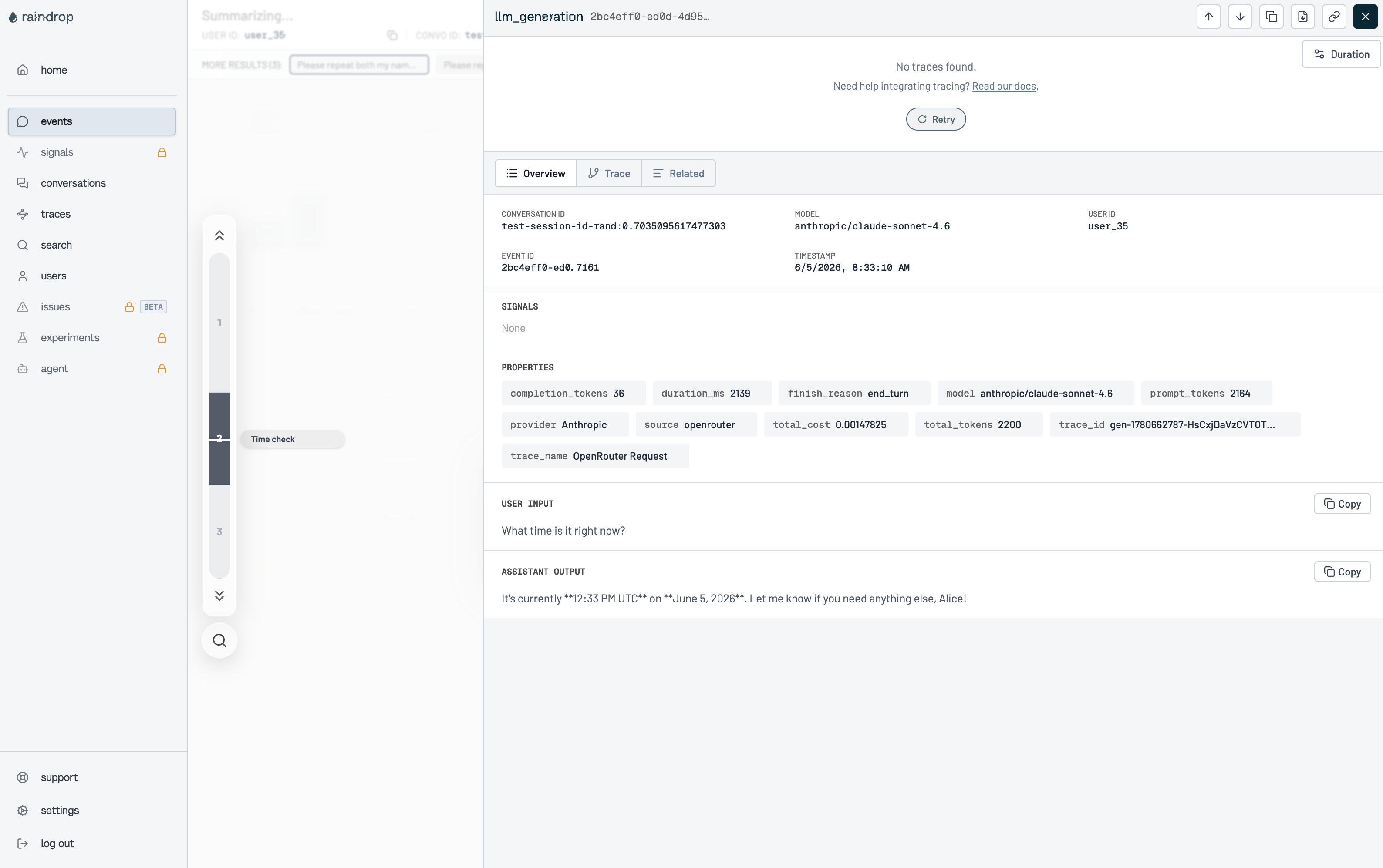
- User Input: The latest user message from the conversation
- Assistant Output: The model’s completion text
- Properties: Token counts, cost, latency, model, provider, and finish reason
Custom Metadata
Raindrop receives events with custom metadata included as event properties. Use thetrace field to attach additional context to your events.
Supported Metadata Keys
Example
trace that is not in the table above is forwarded as-is (e.g. feature becomes the property feature).
Additional Context
- The
userfield maps to Raindrop’suser_idfor user-level analytics - The
session_idfield maps toconvo_idfor grouping conversation turns - Events include system properties like
model,provider,total_cost,prompt_tokens,completion_tokens,duration_ms, andfinish_reason
Privacy Mode
When Privacy Mode is enabled for this destination, theinput and output fields are excluded from events. All other event data — token usage, costs, timing, model information, and custom metadata — is still sent normally. See Privacy Mode for details.